Connect your AI
Direct videos from your own AI app
WiskoCuts is an MCP server with 86 video tools. Connect an AI app once, and it can research, ask for pictures, plan every beat, review the frames and approve the render, in the WiskoCuts app on your computer.
Before you start: install the WiskoCuts desktop app and keep
it open while your AI app works. The MCP server talks only to the app on the same computer
(127.0.0.1:8100), so your AI app must run on that computer too.
Three ways to connect
What works, and what does not
Supported = we connect it for you and test it with the app. Compatible = a standard MCP app: the installer writes its own documented settings, but it is not in our test runs. Not supported = it cannot reach the app on your computer.
| AI app | Status | How to connect | Can the app start it for a step? |
|---|---|---|---|
| Claude Code | Supported | One click or plugin | Yes |
| Codex (CLI and app) | Supported | One click or installer | Yes |
| OpenCode | Supported | One click or installer | Yes, with a paid model provider in OpenCode* |
| Claude Desktop | Supported | One click or installer | No: you direct from its chat |
| Freebuff | Supported | One click | No: you direct from its chat |
| Cursor | Compatible | Installer | No: you direct from its chat |
| VS Code (GitHub Copilot agent mode) | Compatible | Installer | No |
| Windsurf | Compatible | Installer | No |
| Gemini CLI | Compatible | Installer | No |
| Kiro | Compatible | Installer | No |
| LM Studio | Compatible | Installer | No |
| OpenClaw | Compatible | One command | No |
| PicoClaw | Compatible | One command | No |
| Zed, Cline, Roo Code, JetBrains AI Assistant, Continue, Goose | Compatible | Paste the settings | No |
| NanoClaw | Not tested | Its agents run inside containers, which cannot reach the app at 127.0.0.1 without extra network setup. | |
| ZeroClaw | Not supported | We found no documented way to add an MCP server to it. | |
| ChatGPT (web, desktop, phone), claude.ai on the web, the Claude and Gemini phone apps | Not supported | These connect only to MCP servers on a public internet address. The app runs on your computer and does not open itself to the internet. | |
| Any AI app on another computer or a server (a VPS, a cloud agent) | Not supported | The server must run on the same computer as the WiskoCuts app. | |
* OpenCode's free models work only inside OpenCode's own chat. To let the app start OpenCode for a step, sign in to a paid model provider in OpenCode. Or direct the video from OpenCode's chat: the tools are connected there either way.
One click in the app
The quickest way, when the WiskoCuts app is installed on this computer.
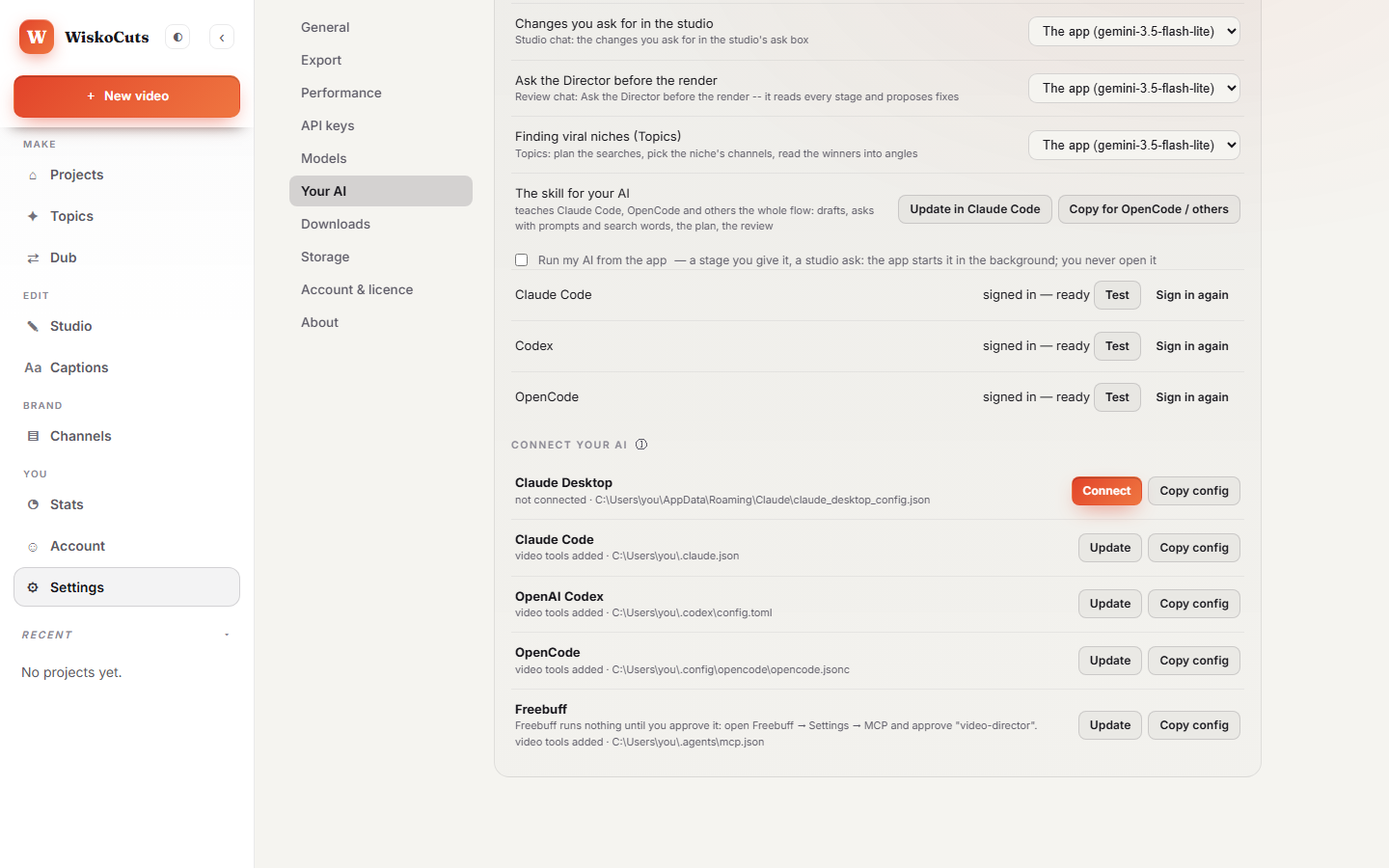
- In the app, open Settings → Your AI.
- Under Connect your AI, press Connect next to your AI app. The app adds its server to that app's
settings file. It changes nothing else in the file and saves a copy of the old one as
.bak. - Fully quit your AI app and open it again, then ask it to
start_here.
Claude Code plugin
One plugin installs the MCP server and the Director's how-to (a skill), and Claude Code keeps it up to date.
- Install uv if you don't have it.
It runs the server and fetches its two Python packages the first time.
powershell -ExecutionPolicy ByPass -c "irm https://astral.sh/uv/install.ps1 | iex"curl -LsSf https://astral.sh/uv/install.sh | shcurl -LsSf https://astral.sh/uv/install.sh | sh - Add our plugin marketplace, then install the plugin:
In a Claude Code session,claude plugin marketplace add https://wiskocut.com/plugins/marketplace.json claude plugin install wiskocuts@wiskocuts/plugin marketplace add …and/plugin install …do the same. - Start a new Claude Code session with the WiskoCuts app open, and ask:
start_here.
Windows PowerShell says "running scripts is disabled on this system"? Type
claude.cmd instead of claude (for example claude.cmd plugin install
wiskocuts@wiskocuts), or run the commands in Command Prompt.
If you already connected Claude Code with one click in the app, use one or the other: both at once give Claude two copies of every tool.
Plugin 1.0.0+hb5693aabf6 · download the zip (47 KB) ·
SHA-256 f70a46b98a11e42df641ec7d28d60588b9c4e271e47b945ab9034eeb2a6af18a
Installer for every other app
One download for every app below. It needs Python 3.10 or newer, which you already have if you use a coding AI. Without uv, it installs the server for your own Python instead.
- Download wiskocuts-mcp.zip (47 KB) and unzip it anywhere.
- Open a terminal in the unzipped folder and see what is on your computer:
python install.py list - Connect one app, several, or every app it found:
python install.py cursor python install.py cursor gemini opencode python install.py all - Restart the app(s), keep WiskoCuts open, and ask:
start_here.
The installer copies itself to ~/.wiskocuts/mcp/, so you can delete the download, and adds one
entry named video-director to the app's own MCP settings. It changes nothing else, keeps the old file
as .bak, and writes no key, password or token.
python install.py print vscode    # only show the exact settings text, change nothing
python install.py remove cursor   # take WiskoCuts out of Cursor's settings
python install.py cursor --python # run the server with this Python instead of uvx
Every app, step by step
Each section below gives the installer command, then the settings it writes, for anyone who prefers to do it by
hand. In the settings, <HOME> is your home folder (C:/Users/you,
/Users/you or /home/you). python install.py print <app> shows the
exact text, already filled in.
Claude Code
Use one click or the plugin. To add it by hand instead:
claude mcp add video-director --scope user -e VOX_MCP_AGENT=claude -- uvx --from "<HOME>/.wiskocuts/mcp/1.0.0+hb5693aabf6/server" wiskocuts-mcpCheck it with claude mcp list: video-director shows as connected while the app is open.
Claude Desktop
python install.py claude-desktopOr open Claude Desktop's Settings → Developer → Edit Config and add the server to
claude_desktop_config.json:
{
  "mcpServers": {
    "video-director": {
      "command": "uvx",
      "args": ["--from", "<HOME>/.wiskocuts/mcp/1.0.0+hb5693aabf6/server", "wiskocuts-mcp"],
      "env": { "VOX_MCP_AGENT": "claude_desktop" }
    }
  }
}
Quit Claude Desktop fully (from the tray or menu bar, not just the window) and open it again.
Codex
python install.py codexOr with Codex's own command, or in ~/.codex/config.toml:
codex mcp add video-director --env VOX_MCP_AGENT=codex -- uvx --from "<HOME>/.wiskocuts/mcp/1.0.0+hb5693aabf6/server" wiskocuts-mcp[mcp_servers.video-director]
command = "uvx"
args = ["--from", "<HOME>/.wiskocuts/mcp/1.0.0+hb5693aabf6/server", "wiskocuts-mcp"]
env = { VOX_MCP_AGENT = "codex" }
tool_timeout_sec = 120OpenCode
python install.py opencodeThis adds the server to ~/.config/opencode/opencode.json and the Director's how-to to
~/.config/opencode/skills/video-director/. OpenCode 2.x reads MCP servers from mcp.servers;
the installer checks your version and writes the shape it reads. By hand, for OpenCode 2.x:
{
  "$schema": "https://opencode.ai/config.json",
  "mcp": {
    "servers": {
      "video-director": {
        "type": "local",
        "command": ["uvx", "--from", "<HOME>/.wiskocuts/mcp/1.0.0+hb5693aabf6/server", "wiskocuts-mcp"],
        "environment": { "VOX_MCP_AGENT": "opencode" },
        "enabled": true
      }
    }
  }
}
Cursor
python install.py cursorOr add a custom MCP server in Cursor Settings (the MCP section), which edits ~/.cursor/mcp.json:
{
  "mcpServers": {
    "video-director": {
      "command": "uvx",
      "args": ["--from", "<HOME>/.wiskocuts/mcp/1.0.0+hb5693aabf6/server", "wiskocuts-mcp"],
      "env": { "VOX_MCP_AGENT": "cursor" }
    }
  }
}
Use it from the Agent chat. Cursor lists the server under MCP with a green dot once it has started.
VS Code (GitHub Copilot)
python install.py vscodeOr run MCP: Open User Configuration from the command palette (Ctrl+Shift+P).
VS Code uses servers and a type:
{
  "servers": {
    "video-director": {
      "type": "stdio",
      "command": "uvx",
      "args": ["--from", "<HOME>/.wiskocuts/mcp/1.0.0+hb5693aabf6/server", "wiskocuts-mcp"],
      "env": { "VOX_MCP_AGENT": "vscode" }
    }
  }
}
The tools show in Copilot Chat's Agent mode, under the tools button.
Windsurf
python install.py windsurfOr add the same mcpServers entry as for Cursor to ~/.codeium/windsurf/mcp_config.json,
with "VOX_MCP_AGENT": "windsurf", then refresh the MCP servers in Cascade.
Gemini CLI
python install.py geminiOr add the same mcpServers entry to ~/.gemini/settings.json, with
"VOX_MCP_AGENT": "gemini". In Gemini CLI, /mcp lists the server and its tools.
Kiro
python install.py kiroOr add the same mcpServers entry to ~/.kiro/settings/mcp.json.
LM Studio
python install.py lmstudioOr open the Program tab → Install → Edit mcp.json (~/.lmstudio/mcp.json) and add the same
mcpServers entry. Directing a video takes a model that is good with tools: a small local model can
struggle with a full plan.
OpenClaw and PicoClaw
These own their settings through their own command line, so the installer shows the exact command instead of writing a file:
python install.py print openclaw
python install.py print picoclaw
OpenClaw
Stop the OpenClaw Gateway first, run the command, then start the Gateway again:
openclaw mcp set video-director '{"command":"uvx","args":["--from","<HOME>/.wiskocuts/mcp/1.0.0+hb5693aabf6/server","wiskocuts-mcp"],"env":{"VOX_MCP_AGENT":"openclaw"}}'PicoClaw
picoclaw mcp add video-director --env VOX_MCP_AGENT=picoclaw -- uvx --from "<HOME>/.wiskocuts/mcp/1.0.0+hb5693aabf6/server" wiskocuts-mcp
picoclaw mcp test video-director
Claws often run on a server or a VPS. This works only when the claw runs on the same computer as the WiskoCuts app.
Zed, Cline, Roo Code, JetBrains, Continue, Goose
Each of these takes the standard server entry in its own MCP settings: the command uvx, the arguments
--from <HOME>/.wiskocuts/mcp/1.0.0+hb5693aabf6/server wiskocuts-mcp, and the
variable VOX_MCP_AGENT set to the app's name.
- Cline / Roo Code: the MCP Servers icon → Configure MCP Servers; paste the
mcpServersentry shown for Cursor. - JetBrains AI Assistant: Settings → Tools → AI Assistant → Model Context Protocol (MCP) → Add → paste the
mcpServersJSON. - Zed: add it under
context_serversin Zed's settings, withcommand,argsandenv. - Continue: add a block under
mcpServersin itsconfig.yaml, withname,command,argsandenv. - Goose:
goose configure→ Add Extension → Command-line Extension → paste the whole command.
Which stages your AI decides
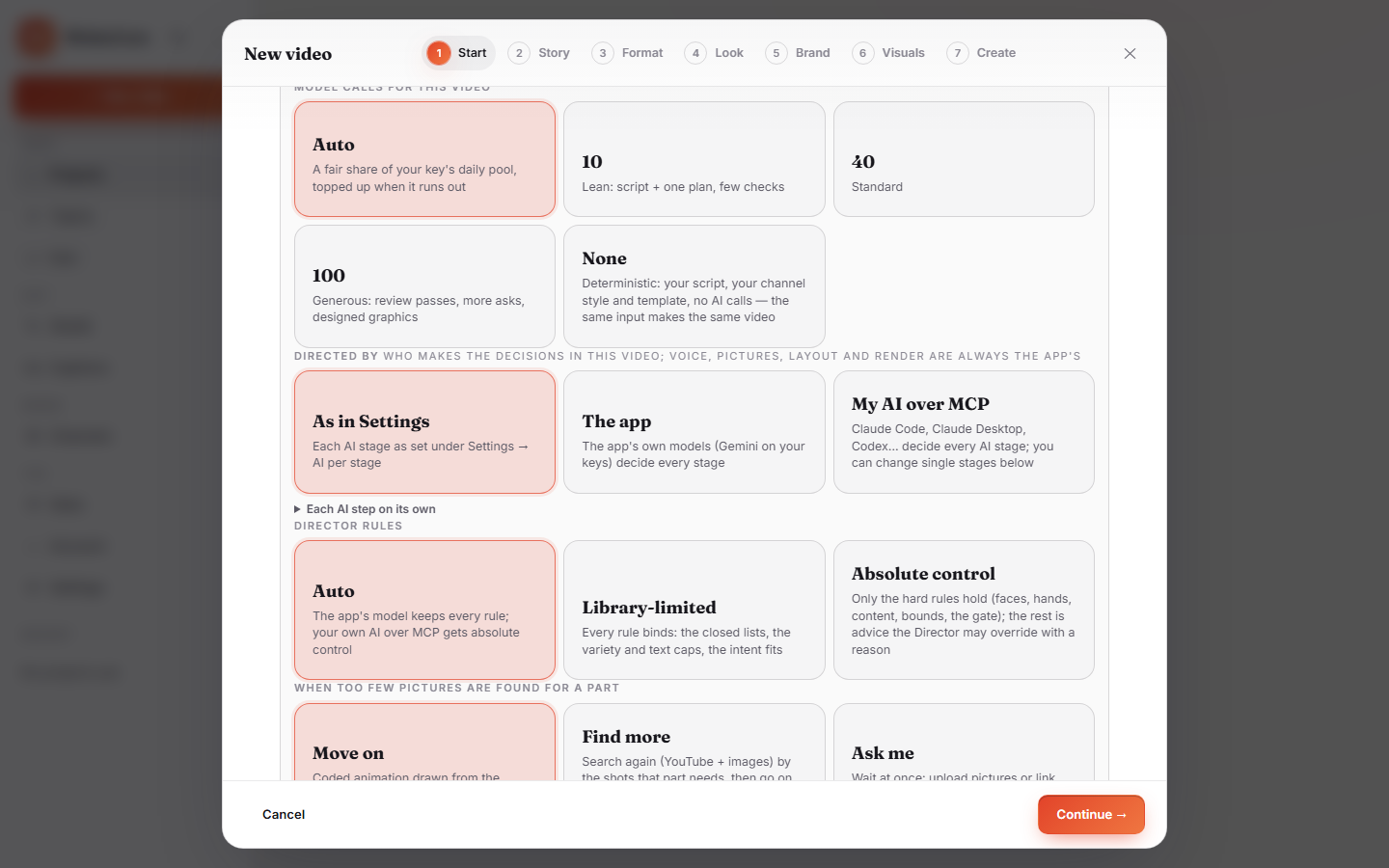
Your AI never replaces the voice, the layout or the render: those are always the app's. For the stages where a model decides, you choose the app's own models (Gemini on your keys) or your AI over MCP:
| Stage | What your AI decides |
|---|---|
| Research | What the video says, and the facts behind it |
| Asset requests | Which pictures, cut-outs, series and clips to ask for |
| Footage check | Which found pictures and clips truly show the story |
| Director | Every beat's staging, pictures, camera and sound |
| Review before render | Approve, or name what to fix |
| Studio chat | The changes you ask for in the studio's ask box |
| Review chat | "Ask the Director" before the render |
| Topics | Planning the searches, picking a niche's channels, reading the winners into angles |
- For every video: Settings → Your AI → AI per stage.
- For one video: in the New-video wizard, open More choices, then Directed by → My AI over MCP, or set each step on its own.
- Run my AI from the app: for Claude Code, Codex and OpenCode, the app can start your AI by itself for the one step that is waiting, so you only watch the app. It runs with your own sign-in, sees only the app's video tools (no files, no shell, no web), and every step it takes shows in the video's log.
Your first video from your AI
With the app open, ask your AI app something like:
Use the video-director tools: start_here, then make a 2-minute documentary about the history of the Silk Road.Your AI calls start_here, creates a draft, and the app opens the New-video wizard for you to check
and press Start. From then on your AI does the stages it owns, and waits with wait_for_change
until the next one is its turn. The full list of tools is in the MCP tools reference.
Troubleshooting
"401 missing or wrong install token"
The WiskoCuts app is not running, or a different copy of the app is. Open the app, then try again.
"This connection to the app is out of date"
The app was updated while your AI app was open, so new tools are missing. Fully quit your AI app and open it again.
The server does not start: "uvx" not found
Install uv (see the plugin steps), then restart your AI app. Or run the installer with
--python, which needs no uv.
My AI app says there are too many tools
Some apps cap how many tools can be on at once. This server offers 86. Turn off the tool groups you don't use in that app's MCP settings; the tools reference shows the groups.
Nothing changed after I connected
Most apps read their MCP settings only when they start. Quit the app fully, not just its window, and open it again.
Security and privacy
- The server and its settings never contain a key, password or token. It asks the running app on this computer
for a one-time local pass, and the app answers only on
127.0.0.1. - Your AI uses its own subscription and sign-in. Your WiskoCuts keys are never sent to it.
- The server can only call the app's video tools: it cannot read or write your files.
- Removing it:
python install.py remove <app>, orclaude plugin uninstall wiskocuts.